If you are learning how to configure platformio for the freenove esp32-s3 breakout board, the confusing part is rarely the C++ code. The real friction is choosing the correct board definition, USB port, framework, and upload settings. I ran into this while building a small energy-monitoring node for my Home Assistant test bench. The first compile worked; the first upload did not. Once the project was configured correctly, the board became a dependable little controller rather than a desk ornament.
This guide uses Visual Studio Code with the PlatformIO IDE extension. The same principles apply whether you are reading a temperature sensor, controlling a relay, or sending voltage data over Wi-Fi.
What you need before creating the project
Gather the Freenove ESP32-S3 Breakout Board, a USB-C data cable, a Windows, macOS, or Linux computer, and a fresh installation of Visual Studio Code. The cable matters more than people expect. A charge-only USB cable can power the board while making it invisible to your computer, which creates a very misleading failure.
Install Visual Studio Code from the official Microsoft distribution, then install the PlatformIO IDE extension from the Extensions panel. PlatformIO will install its own toolchains and package dependencies the first time it creates a project. Give that process several minutes, especially on a new machine. A stalled-looking terminal window is often just downloading the ESP32 compiler.
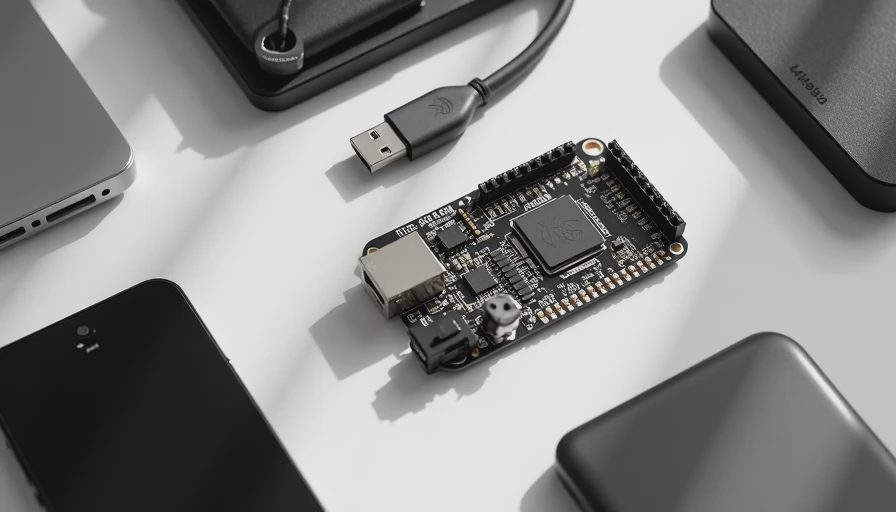
The Freenove board uses the ESP32-S3 family, but PlatformIO does not always offer a board entry named exactly after the retail product. That is normal. The board definition describes the microcontroller and upload behavior, not every label printed on the circuit board.
Create the correct PlatformIO project
Open PlatformIO Home and choose New Project. Give it a simple name such as freenove-s3-test. In the board field, search for ESP32-S3. If the exact Freenove entry appears, select it. If it does not, choose a compatible ESP32-S3 development board listed by PlatformIO, then confirm the board's flash and USB behavior against the Freenove documentation.
For the framework, select Arduino unless you specifically need ESP-IDF. Arduino is the easier starting point for sensors, displays, relays, and Home Assistant experiments. Set the location somewhere with a short path, such as a projects folder in your home directory. Long paths and unusual punctuation can create avoidable Windows toolchain errors.
After creating the project, open platformio.ini. This file is the control panel for the build. A practical starting configuration looks like this:
[env:freenove-s3]
platform = espressif32
board = esp32-s3-devkitc-1
framework = arduino
monitor_speed = 115200
The board value is the part that deserves verification. If PlatformIO suggests a different compatible board identifier, use that identifier instead of blindly copying this example. The Freenove product family has appeared in multiple revisions, and memory size or USB implementation can differ.
The key lesson in how to configure platformio for the freenove esp32-s3 breakout board is to treat platformio.ini as a hardware profile. It tells PlatformIO which compiler, upload tool, framework, and board assumptions to use.
Build and upload a first test
Before adding sensors, prove that the toolchain works with a small serial program. Replace the contents of src/main.cpp with a sketch that starts Serial at 115200 baud and prints a message every second. Keep the first test boring. A blinking LED is useful, but LED pin assignments differ between board revisions; serial output is easier to verify.
Click the PlatformIO Build button, represented by a check mark in the VS Code status bar. A successful build produces a firmware image in the .pio directory. If the build fails, read the first meaningful error rather than the final line. Missing packages, an invalid board identifier, and a syntax error produce very different fixes.
Connect the board with the USB-C data cable and click Upload. PlatformIO normally detects the serial port automatically. If it asks for a port, use the port that appears when the board is connected and disappears when it is removed. On macOS and Linux, that often looks like /dev/cu.usbmodem or /dev/ttyACM0. On Windows, it will usually be a COM port.
Open the PlatformIO Serial Monitor and set it to 115200 baud. Press the board's reset button once. You should see the startup message and then the repeating test output. This simple test confirms that the compiler, USB connection, upload process, and monitor speed agree.

Fix the common upload problems
If the board powers up but no serial port appears, start with the cable and operating system. Try another known-good data cable and another USB port. Avoid an unpowered hub while troubleshooting. On Windows, inspect Device Manager for a newly added COM device. On Linux, the user may need permission to access the serial device.
If PlatformIO reports a failed connection or times out during upload, hold the BOOT button while clicking Upload, then release it when the upload begins. Some ESP32-S3 boards need this manual download-mode step. Press RESET afterward to run the new firmware. A different USB connector can also matter if the board exposes separate native USB and USB-to-serial paths.
A successful upload followed by unreadable monitor text usually means a baud mismatch. Set both the sketch and monitor to the same speed, commonly 115200. If the monitor is completely blank, confirm that the program calls Serial.begin and that you are watching the port associated with the board rather than another device.
For recurring problems, close other serial tools, delete the .pio folder, and rebuild. This forces PlatformIO to recreate generated files without deleting your source code. Do not repeatedly change board definitions at random; record each change so you know which setting solved the problem.
Add useful settings for a smart-home project
Once you understand how to configure platformio for the freenove esp32-s3 breakout board, add settings that make development less fragile. You can define upload_port and monitor_port when automatic detection chooses the wrong device. You can also add monitor_filters = esp32_exception_decoder to make crash messages easier to read, although the filter is most useful after the basic serial test works.
For Wi-Fi projects, keep credentials out of the main source file. A separate header listed in .gitignore is safer than publishing a password in a public repository. For a sensor node, start with one measurement and one log message, then add sleep modes, MQTT, or an HTTP endpoint one feature at a time. This makes power and network problems distinguishable from hardware problems.
I use this staged approach for energy-monitoring prototypes because it prevents a bad sensor reading from being blamed on Wi-Fi. First prove the board, then the sensor, then the network, and finally the Home Assistant integration. Your house should work for you, not the other way around.
A repeatable setup checklist
When I need to configure the board again, I follow the same sequence. Install VS Code and PlatformIO, connect with a data cable, create an Arduino project, select a compatible ESP32-S3 board definition, and inspect platformio.ini. Then I build an untouched project, upload a serial test, open the monitor, and press RESET.
Only after that do I add libraries or application code. If the board definition is uncertain, I compare the selected flash size, USB mode, and chip family with the product documentation. If the upload fails, I test the cable, port, and BOOT-button procedure before changing software. This order saves time because it separates configuration errors from wiring errors.
The practical answer to how to configure platformio for the freenove esp32-s3 breakout board is therefore not one magical line in a file. It is a verified chain from USB cable to board profile to compiler to upload mode. Once that chain is working, PlatformIO handles the repetitive parts and leaves you free to build the useful thing, whether that is a greenhouse controller, a power monitor, or the next small piece of HouseOS.

Letters
No letters yet — be the first to write.